Why fixed playback speed is not enough
Hard skipping can remove useful context. TimeCut takes a more conservative approach: it changes pace by section and lets you stop optimization at any time.
A controlled speed map for learning workflows
TimeCut turns the timestamped transcript into bounded playback zones. Each range is validated for time boundaries, overlap and supported speed before it can control the player. The optimization remains reversible at every step.
A realistic usage example
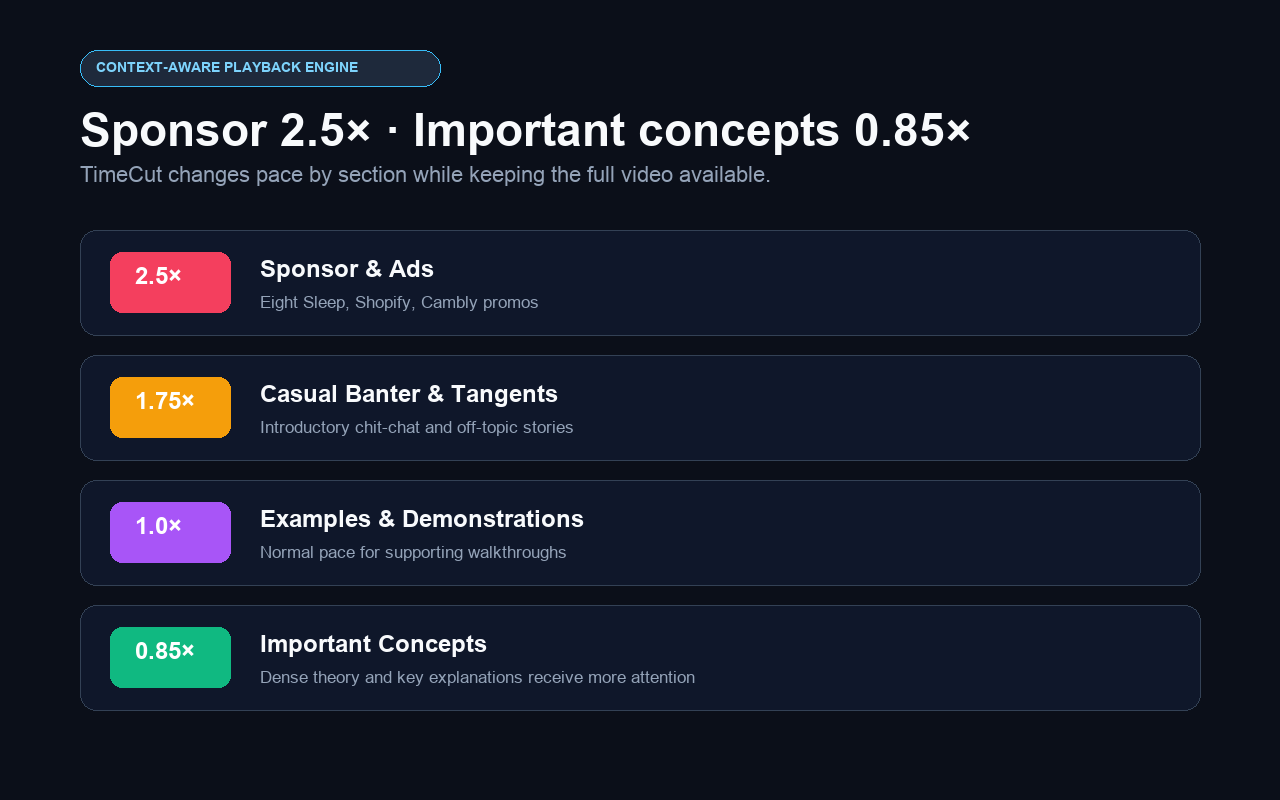
A speed map might play a sponsor section at 2.5×, casual filler at 1.75× and an important explanation at 0.85×. The user remains in control throughout playback.
Common questions
Does TimeCut literally skip filler?
No. It accelerates lower-value sections rather than removing them, so context remains available.
Can it detect sponsor sections?
The AI analyzes timestamped transcript context and may categorize sponsor or promotional sections in its speed map.
Can I seek normally while it is active?
Yes. TimeCut resynchronizes the applicable speed zone after seeking or resuming playback.